
Security
Utopia Server Panel provides comprehensive security controls across authentication, session lifecycle, multi-factor verification, and brute-force protection.
Login Protection & Proof-of-Work Captcha
To protect login and registration endpoints against automated brute-force requests, the panel includes a built-in SHA-256 Proof-of-Work captcha system.
- Under System Settings -> Panel Settings -> Security Policy, administrators can set the captcha policy to
auto,always, oroff. - In
automode, challenges are triggered automatically for sensitive actions such as registration or when failed login attempts accumulate. - Captcha difficulty is configurable between
10000and1000000, defaulting to80000. - When consecutive failed logins reach
maxFailedLogins, the account is locked forlockoutMinutesminutes. Defaults are 5 attempts and 15 minutes.
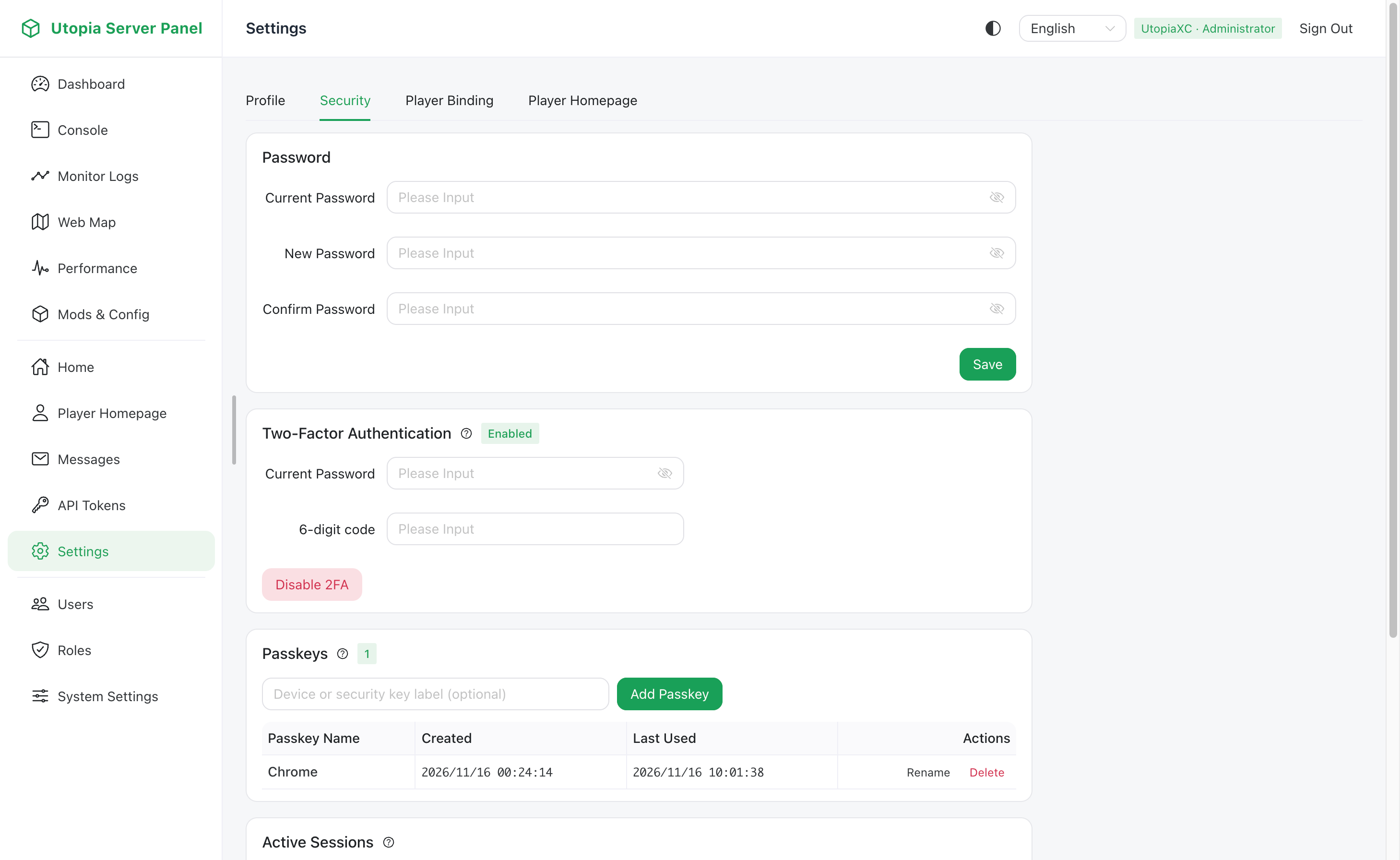
Two-Factor Authentication TOTP
The panel supports standard time-based one-time passwords compatible with Google Authenticator, Microsoft Authenticator, 1Password, and similar apps.
- Click Enable 2FA in Personal Security Settings to generate a secret key and QR code.
- Scan the QR code with your authenticator app and enter the 6-digit verification code to confirm.
- Once enabled, password logins require an additional 6-digit TOTP code.
- Administrators can enforce
force2faglobally under System Settings -> Panel Settings -> Security Policy, or enable it per user.
If a user loses access to their authenticator device, they can recover via:
- Email reset from the login page when SMTP is configured.
- Running
/usp recover 2fain-game if a Minecraft player is bound.
Passkeys
The panel supports the WebAuthn standard, allowing users to register fingerprints, Face ID, or hardware security keys as passkeys.
- Multi-Device Management: Bind multiple passkeys per account with custom names and individual removal.
- Passwordless Login: Sign in directly from the login page using a registered passkey without entering a username or password.
- Second-Factor Verification: Passkeys can also be used as a second factor when 2FA is enabled.
Note
WebAuthn requires a browser secure context. When serving over a domain name, make sure HTTPS is enabled and configure baseUrl accurately under System Settings -> Panel Settings -> System Info. Local access via localhost or 127.0.0.1 is treated as a secure context by browsers.
Sessions, Login History & Personal Access Tokens
- Active Sessions: View all active login devices, IP addresses, user agents, and last-seen timestamps in Personal Settings, and revoke any session immediately. Default session lifetime is
7days. - Login Audit History: Tracks the latest 20 login attempts with timestamps, IPs, methods, and success or failure outcomes.
- Personal API Access Tokens: Create
usp_prefixed tokens with full or scoped permissions for scripts and external integrations. See API Reference.